

Make your iPhone quiet and power-friendly when charging (automatic)
Want your iPhone to switch off Wi‑Fi, mobile data, Bluetooth and dim the screen whenever you plug it in — and restore everything when unplugged? This Shortcuts guide presents two options: a simple, reliable setup and an advanced version that attempts to recall exact previous states.
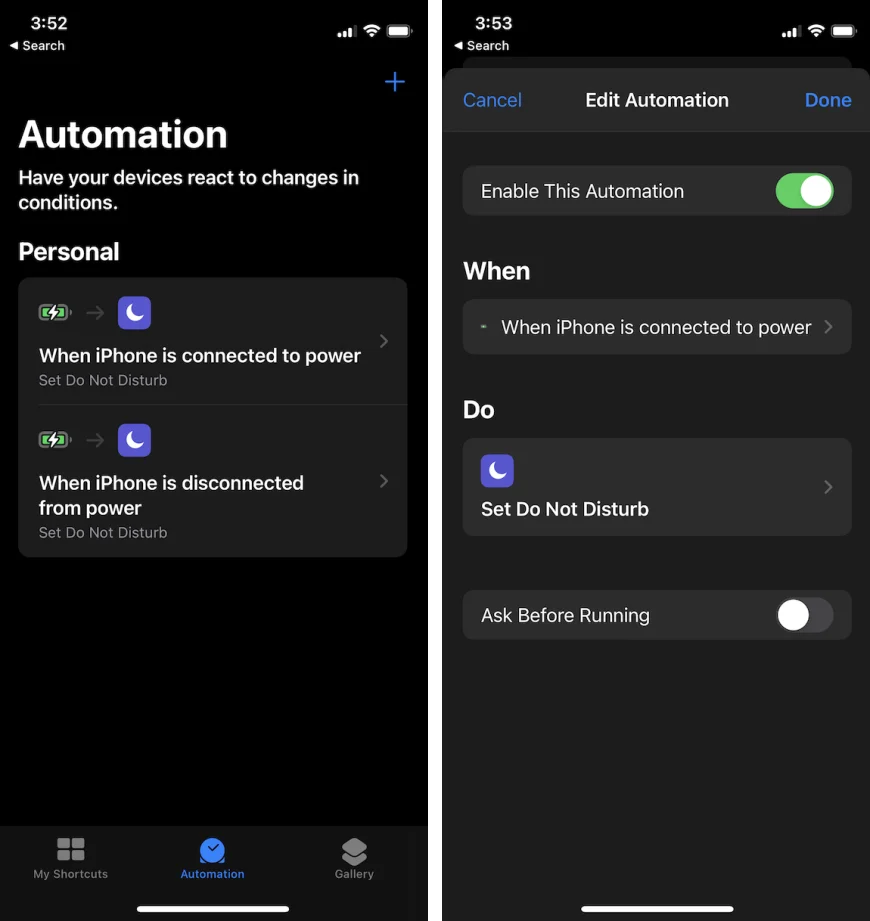
iPhone charging automation: auto-turn Wi‑Fi, Mobile Data & Bluetooth OFF when charging — restore when unplugged
Use the Shortcuts app → Automation to create two Personal Automations: When Charger Is Connected (turn Wi‑Fi OFF, Bluetooth OFF, set Brightness to 20%, disable Mobile Data if supported) and When Charger Is Disconnected (restore your normal settings). This guide gives a simple, reliable method (restore to a chosen “normal” preset) plus an advanced method (capture current states and restore them), with screenshot captions and blog-ready copy.
What you’ll get from this guide
-
A ready-for-blog, step-by-step walkthrough to: auto-disable Wi‑Fi, Bluetooth, mobile data (where possible) and reduce brightness to 20% whenever your iPhone starts charging and restore settings when you unplug.
-
Two options: Simple (recommended — reliable) and Advanced (best-effort — attempts to remember exact previous states).
-
Screenshot checklist, image captions, ALT text, and copy you can paste into your blog.
Requirements & important notes
-
iPhone with the Shortcuts app (built-in on modern iOS). Keep iOS up-to-date — newer iOS versions (iOS 17+) expose more network actions in Shortcuts.
-
Some shortcut actions vary by iOS version and carrier. Toggling Cellular/Mobile Data from a Shortcut may not be available on every device or iOS version. If the "Set Cellular Data" action is missing, the guide shows fallbacks.
-
Some automations can run automatically (no prompt); others may ask you to confirm the first time. The guide shows how to disable the confirmation when possible.
Quick plan (Simple/reliable approach)
-
Create a Personal Automation: Charger → Is Connected → actions: Set Wi‑Fi Off, Set Bluetooth Off, Set Brightness 20% (optional: Set Cellular Data Off if available). Disable Ask Before Running where possible.
-
Create a second Personal Automation: Charger → Is Disconnected → actions: Set Wi‑Fi On, Set Bluetooth On, Set Brightness to your normal brightness (e.g., 100%), Set Cellular Data On (if available). Disable Ask Before Running.
This approach restores a known "normal" configuration rather than trying to remember the exact prior state. It's simpler and more reliable.
Option A — Simple tutorial (recommended for most users)
Step 1 — Open Shortcuts → Automation
-
Open the Shortcuts app.
-
Tap Automation (bottom tab).
-
Tap + (top right) or Create Personal Automation.
Screenshot to capture: Shortcuts app main screen with the Automation tab highlighted. Caption: Shortcuts → Automation.
Step 2 — Create the "Charging — Connected" automation
-
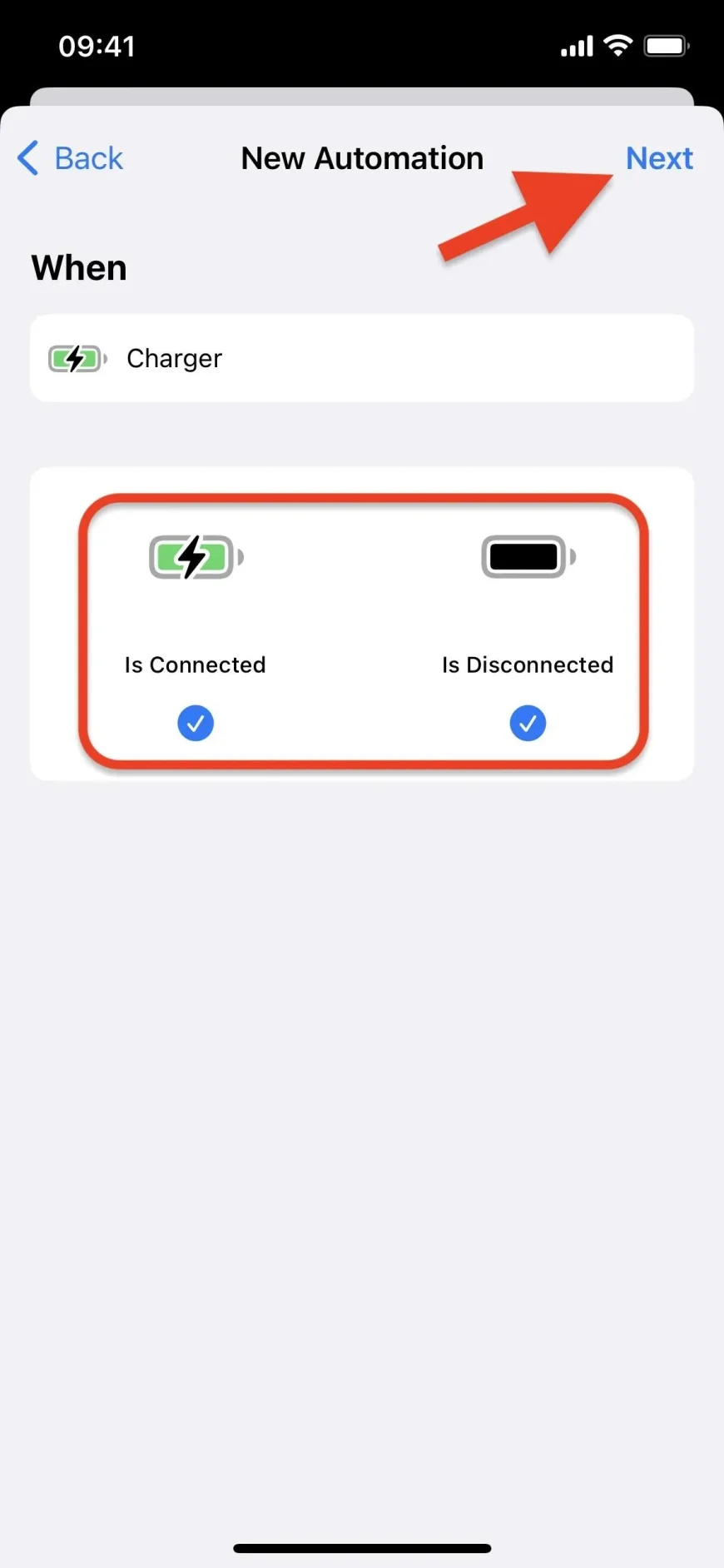
Scroll and tap Charger.
-
Select Is Connected and tap Next.
-
Tap Add Action.
-
Search for Set Wi‑Fi → tap it → set to Off.
-
Tap + (add another action) → search Set Bluetooth → set to Off.
-
Add Set Brightness action → drag or set value to 20%.
-
(Optional) Add Set Cellular Data → set to Off — if you see this action. If not available, skip and see fallbacks below.
-
Tap Next. Turn Ask Before Running Off if the toggle is available (this allows fully automatic execution). Confirm Don’t Ask when prompted.
-
Tap Done.
Screenshot to capture: The automation editor showing the actions stacked: Set Wi‑Fi Off; Set Bluetooth Off; Set Brightness 20%. Caption: Actions for "Charging (Connected)" automation.
Step 3 — Create the "Charging — Disconnected" automation
-
Automation → + → Charger → choose Is Disconnected → Next.
-
Add actions to restore your normal state. Example (choose values you want as default):
-
Set Wi‑Fi → On
-
Set Bluetooth → On
-
Set Brightness → 100% (or whatever you prefer)
-
Set Cellular Data → On (if available)
-
-
Turn Ask Before Running Off if the toggle is available.
-
Tap Done.
Screenshot to capture: Automation editor for Is Disconnected with restore actions. Caption: Restore actions for "Charging (Disconnected)".
Notes & fallback for Mobile Data
-
If you don’t see the Set Cellular Data action in Shortcuts, that means Shortcuts on your iPhone (or your carrier) doesn't expose a direct toggle. The fallback options are:
-
Add an action Open App → Settings (or Open URLs to
App-Prefs:root=MOBILE_DATA_SETTINGS_ID— This may not work reliably. This will open Settings → Cellular; the automation can’t toggle it for you, but it takes you right where to toggle. -
Accept the simple plan: rely on Wi‑Fi/Bluetooth/brightness toggles (those are supported on most iOS versions).
-
Option B — Advanced: remember exact prior states and restore them (best-effort)
Use this if you want the phone to come back to the exact Wi‑Fi/Bluetooth/cellular/brightness values you had before plugging in. This is more complex and can be impacted by iOS version and action availability.
Overview:
-
When the charger connects, run a small Shortcut that reads current settings (brightness, network details) and saves them to a small file in iCloud (Shortcuts folder) as a JSON/dictionary.
-
Then the same automation performs the "turn off" actions.
-
When the charger disconnects, run a second Shortcut that reads the saved JSON and restores each value.
High-level steps to capture state
-
Create a Shortcut named Save Charging State.
-
Add actions:
-
Get Device Details → Current Brightness (store to a variable
brightness). -
Get Network Details → Network Name (SSID) (if empty, treat Wi‑Fi as off; otherwise Wi‑Fi on).
-
(Optional & limited) Try Get Network Details → Cellular fields, or use available Toggle Cellular/related actions if present.
-
Create a Dictionary with keys:
wifi,bluetooth,brightness,cellular(set boolean/string values as available). -
Save File → save dictionary as JSON to
iCloud Drive/Shortcuts/charging_state.json.
-
-
In your Charger Is Connected automation, add Run Shortcut → Save Charging State as the first action, then your Set Wi‑Fi Off / Set Bluetooth Off / Set Brightness 20% actions.
High-level steps to restore
-
Create a Shortcut named Restore Charging State.
-
Add actions:
-
Get File →
iCloud Drive/Shortcuts/charging_state.json→ Get Contents of File → Get Dictionary Value to readwifi,bluetooth,brightness,cellular. -
Use those values to run Set Wi‑Fi (On/Off), Set Bluetooth, Set Brightness, and Set Cellular Data (if available).
-
-
In the Charger Is Disconnected automation, Run Shortcut → Restore Charging State.
Caveats (advanced):
-
Some "Get network/device" actions were unreliable in earlier iOS releases; iOS 17 and later exposed more reliable network details. You may need to tweak the shortcut or accept that not every item will be captured perfectly.
-
Persisting Bluetooth state is the trickiest: Shortcuts’ ability to read the exact on/off state for Bluetooth is limited across iOS releases. If you rely on the advanced method, test thoroughly.
Troubleshooting & tips
-
Automation asks for confirmation every time? Turn Ask Before Running off in the final screen of the automation. Not every automation type supports fully automatic running — Shortcuts will tell you. (If the toggle is absent, the automation will always ask.)
-
Set Cellular Data missing? Use the fallback: open Settings to Cellular (via Open App → Settings) so you can toggle manually, or set a "normal" preset in the Disconnected automation and keep mobile data handling manual.
-
Notifications from Shortcuts when automation runs: If you turn off Ask Before Running and the automation supports it, it can run silently. Some older iOS releases may still show notifications.
-
Test step-by-step: Before relying on these automations, test them while you can monitor the result (plug in/unplug and observe Wi‑Fi/Bluetooth/brightness).
What's Your Reaction?
 Like
0
Like
0
 Dislike
0
Dislike
0
 Love
0
Love
0
 Funny
0
Funny
0
 Wow
0
Wow
0
 Sad
0
Sad
0
 Angry
0
Angry
0

RevealingLies is a news and current affairs website. We publish opinion articles, analysis of issues, news reports (curated from various sources as well as original reporting), and fact-check articles.